
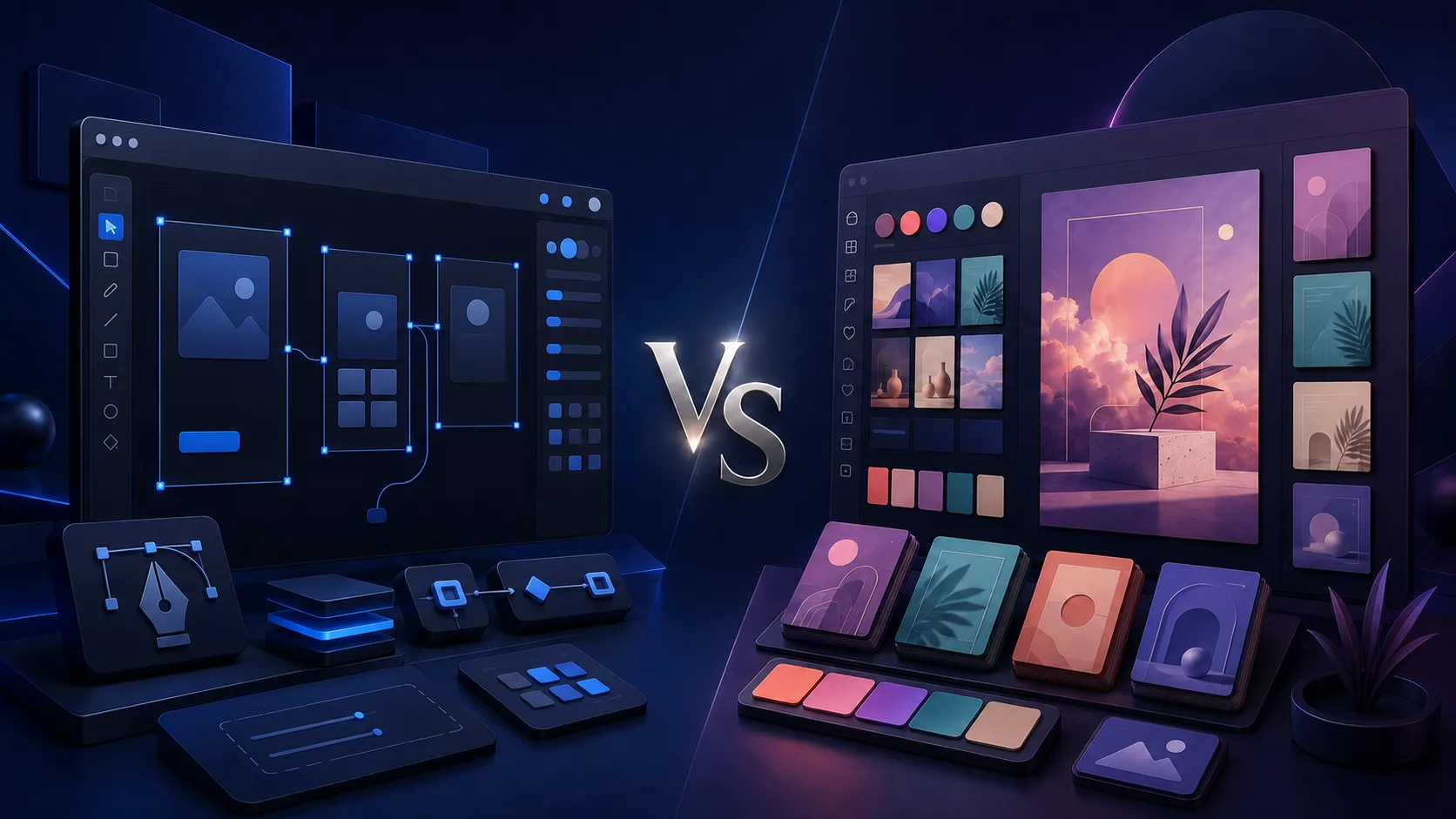
You open Figma to sketch a quick Instagram post, and thirty minutes later you are still fighting the pen tool.
Or you open Canva to design an app screen and realize there is no way to build a real component there.
Picking the wrong tool does not just waste time. It makes a simple task feel impossible, even though the tool itself is perfectly good, just built for a different job.
This Figma vs Canva comparison breaks down what each tool actually does best, where each one falls short, and how their pricing compares in 2026. By the end, you will know which tool fits the project you are working on right now.
So, let’s start!
Table of Contents
- Quick Recommendation
- Figma vs Canva at a Glance
- Figma vs Canva: Which One Should You Choose?
- What Figma Is Actually Built for
- What Canva Is Actually Built for
- Figma Strengths: Where It Stands Out
- Canva Strengths: Where It Stands Out
- Figma vs Canva Pricing Compared
- Which Tool Fits Your Workflow
- Can You Use Figma and Canva together?
- Finding Your Best Design Tool for the job
- Frequently Asked Questions
Quick Recommendation
Figma: Best for UI/UX and product design
Choose Figma when you are designing websites, apps, dashboards, prototypes, or reusable design systems for a development team.
Canva: Best for marketing and most non-designers
Choose Canva when you need social posts, presentations, flyers, videos, or other polished graphics without a steep learning curve.
Figma vs Canva at a Glance
Here is a quick side-by-side look at how the two tools stack up before we get into the details.
| Category | Figma | Canva | Winner |
|---|---|---|---|
| Best for | Product interfaces, prototypes, and design systems | Marketing graphics, social posts, and presentations | Depends on the project |
| Learning curve | Steeper; expect time to learn the core tools | Gentle; usable during the first session | Canva |
| Templates | Community-made resources and UI kits | Large ready-to-use template library | Canva |
| Vector editing | Precise vector tools, pen tool, and boolean operations | Basic-to-moderate vector and shape editing | Figma |
| Developer handoff | Native Dev Mode with design inspection | No dedicated equivalent to Figma Dev Mode | Figma |
| Free plan | Unlimited personal drafts; limits apply to shared team projects | Free tier for general content creation | Depends on the workflow |
| Starting paid price | Varies by seat type and billing term | Varies by plan, region, and billing term | Check current pricing |
Figma vs Canva: Which One Should You Choose?
Choose Figma if you design websites, apps, dashboards, or digital products and need precision, reusable components, interactive prototypes, and developer handoff.
Choose Canva if you create social media posts, presentations, marketing materials, print designs, or short videos and want ready-made templates with a shorter learning curve. Figma is the better specialist tool for product design, while Canva is the more accessible general-purpose design platform.
Both offer free plans, but they solve different workflow problems rather than competing for every type of project.
What Figma Is Actually Built for
Figma is a browser-based interface design tool for people building digital products. It answers one question well: how should this app or website look and work, screen by screen?
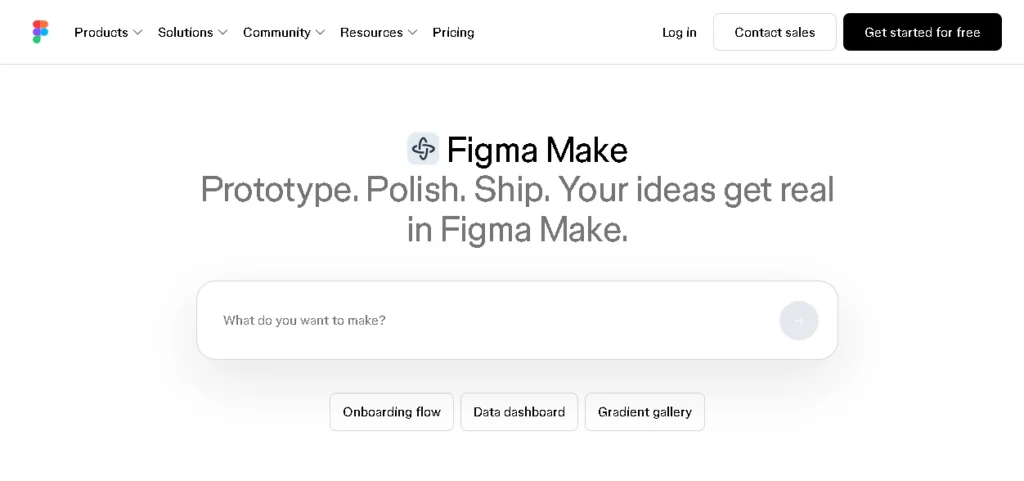
Product designers use it to define buttons, spacing rules, layouts, and interactions, then hand the same file to engineers. It was never meant to replace a template library for social posts. It replaces whiteboards, static mockup files, and fragmented handoff documents for teams shipping software.
What Canva Is Actually Built for
Canva is a template-driven graphics tool for people who need something to look good quickly without learning professional design software. Pick a template, replace the text and photos, export the file, and you are done.
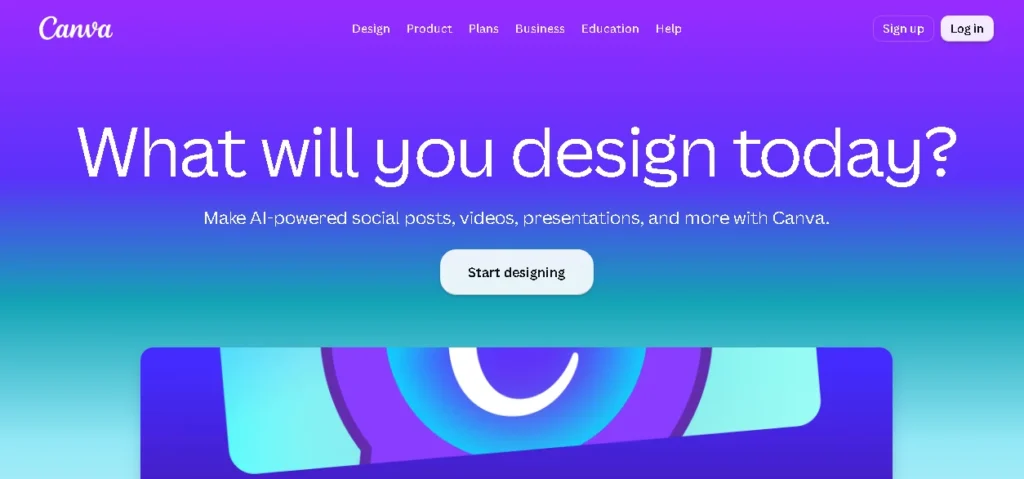
It covers social posts, presentations, flyers, resumes, print materials, websites, and short videos in one place. When you do not have a design background and need a clean result today, Canva removes most of the barriers between you and a finished asset.
Figma Strengths: Where It Stands Out
Figma is built for designing digital products, not just creating visuals. Here are the areas where it outperforms Canva.
Pixel-level control: Figma gives you precise vector editing, boolean shape operations, layout constraints, and responsive behavior. If you are designing an app interface, that level of control is not optional.
Reusable design systems: Figma components let you build one button with multiple variants, then reuse and update it across an entire product. Canva’s Brand Kit stores assets such as colors and fonts, but it is not a replacement for a product design system.
Developer handoff: Figma’s Dev Mode lets an engineer inspect spacing, review design properties, copy code-related values, and export assets directly from the file. This is often the deciding feature for product teams.
Prototyping that behaves like the real product: You can connect frames with transitions, hover states, overlays, and scrolling behavior, so a clickable prototype feels closer to a working app. Canva’s presentation tools are not built for that kind of product interaction.
Want pixel-perfect UI and UX design?
Canva Strengths: Where It Stands Out
Canva is designed to help almost anyone create polished visuals with minimal effort. Here are the strengths that make it useful for marketers, educators, creators, and small businesses.
Speed for beginners: Canva’s drag-and-drop editor and large template library can shorten the time needed to create a social post or flyer. Figma usually requires you to build more of the design yourself.
Template and stock library: Canva combines ready-made templates with stock photos, video, audio, and graphic elements. Figma has a useful community library, but its resources are more focused on product design and UI work.
One tool for many formats: Canva covers presentations, social graphics, print materials, websites, and short videos without forcing you to switch applications. Figma remains stronger for product interfaces and design systems, although its broader platform now includes products such as FigJam, Slides, Sites, Buzz, Make, and Draw.
Straightforward fit for solo content creators: Canva Pro is often easier to justify for a solo marketer or creator who needs general content production and does not use product-design features. Compare the current regional price and billing term before subscribing.
Need social posts, presentations, or marketing assets quickly?
Figma vs Canva Pricing Compared
Both tools offer a free plan, but the free tiers are shaped for different use cases.
Figma’s Starter plan includes unlimited personal drafts. Its shared team project is limited to three combined Figma Design and Figma Sites files, three FigJam files, and three Figma Slides files. Canva’s free plan supports general content creation, while premium content and advanced brand features are available on paid plans.
Here is how the plan structure compares as verified on July 30, 2026:
| Plan level | Figma | Canva |
|---|---|---|
| Free | Starter | Free |
| Individual or small-team paid plan | Professional; price depends on seat type and billing term | Pro for individuals; regional monthly or annual pricing |
| Growing team plan | Organization | Business; announced at US$20 per person/month with no seat minimum, subject to regional pricing |
| Large-organization plan | Enterprise | Enterprise; contact sales |
Figma uses different seat types, including Full, Dev, and Collab seats, so comparing a single headline price can be misleading. Canva Business replaced Canva Teams for new team sign-ups and upgrades; existing Canva Teams customers can remain on their current plan.
Figma’s higher tiers add organizational controls, shared libraries at scale, and security features for product organizations. Canva’s higher tiers add stronger brand controls, collaboration features, and larger allowances for premium and AI-powered tools.
Which Tool Fits Your Workflow
The fastest way to decide is to match the tool to the output you need, not to whichever platform sounds more professional.
Pick Figma if:
- You are designing app screens, websites, or dashboards.
- Developers need to inspect and export your designs.
- You need a shared component library that keeps a product consistent.
- You want interactive prototypes rather than a simple slideshow.
Pick Canva if:
- You need social posts, flyers, or a presentation finished today.
- Nobody on the team has formal design training.
- You want one tool that covers print, video, presentations, and social media.
- Budget and speed matter more than pixel-level control.
Can You Use Figma and Canva together?
Yes. Many teams use both tools side by side. Product designers work in Figma for the app or website, while marketing teams build social assets, campaign graphics, and presentations in Canva.
The workflow is not perfectly symmetrical. Canva can import Figma files and convert supported content into editable Canva designs, but complex components, prototypes, effects, fonts, or layouts may not transfer perfectly. Moving a Canva project back into Figma is less direct, so teams often export assets in formats such as PNG, SVG, or PDF. Figma libraries also do not automatically sync with Canva’s Brand Kit.
Most teams manage this with a shared brand guide and a clear owner responsible for keeping assets consistent across both platforms. The workflow is practical, but it requires coordination rather than a fully automatic integration.
For more software comparisons and tool-selection guides, browse Toolphyra. You may also enjoy our in-depth comparisons of Jasper vs Copy.ai and Notion vs ClickUp, as well as our guide to the Best AI for Writing Essays.
Finding Your Best Design Tool for the job
Figma and Canva rarely compete for the same project once you look at what each one is actually built to do. Figma is the stronger choice for anyone shipping a digital product and collaborating with developers. Canva wins when speed, templates, and accessibility matter more than pixel precision, which covers most marketing, presentation, and social content.
If you are a solo founder or a small marketing team, begin with Canva’s free plan and upgrade when you reach a real limitation. If you are building software with a team, Figma’s cost becomes easier to justify once designers and developers need a shared workflow.
The easiest way to decide is to test the free plan on a real project before paying for a seat.
Frequently Asked Questions
Is Figma better than Canva overall?
Neither tool is better for every user. Figma is better for interface design, prototypes, design systems, and product teams. Canva is better for marketing graphics, presentations, and non-designers who value speed and templates.
Can Canva replace Figma for app design?
No. Canva lacks the same level of vector precision, component-based design systems, realistic product prototyping, and developer handoff that teams need for production app design.
Can Figma replace Canva for social media graphics?
Technically, yes, but it is usually slower. Figma does not provide the same breadth of ready-made marketing templates, so quick social content often takes longer to build from scratch.
Is Figma harder to learn than Canva?
Yes. Canva is designed to be usable during the first session, while Figma generally takes more practice because it includes professional interface design, components, layout, and prototyping tools.
Which tool is cheaper for a solo user?
Canva Pro can be the better-value choice for solo marketers and content creators who do not need product-design features. Because pricing varies by region, billing term, and Figma seat type, compare the checkout price for your account before deciding.
Do Figma and Canva integrate with each other?
Canva can import Figma files for editing, but complex design systems and prototype behavior may not transfer perfectly. Moving Canva designs into Figma is less seamless, and Figma libraries do not automatically sync with Canva’s Brand Kit.



Leave a Reply